By clicking “Accept All Cookies”, you agree to the storing of cookies on your device to enhance site navigation, analyze site usage, and assist in our marketing efforts. View our Privacy Policy for more information.
How to Create a Shareable Link — Pitchwise Support
by
Pitchwise Team
Every document/data room you share on Pitchwise has a secure, trackable link. You can copy it and configure exactly how it behaves before you send it.
Finding your link
1. Open your deck
From My Decks, click the document you want to share. You'll see the document’s analytics view with the 'Copy link' button in the top right.
2. Open link settings
Click the chain link icon (next to Copy link) to open the Manage Link Settings panel. This is where you control all access and behaviour settings for this document’s link.
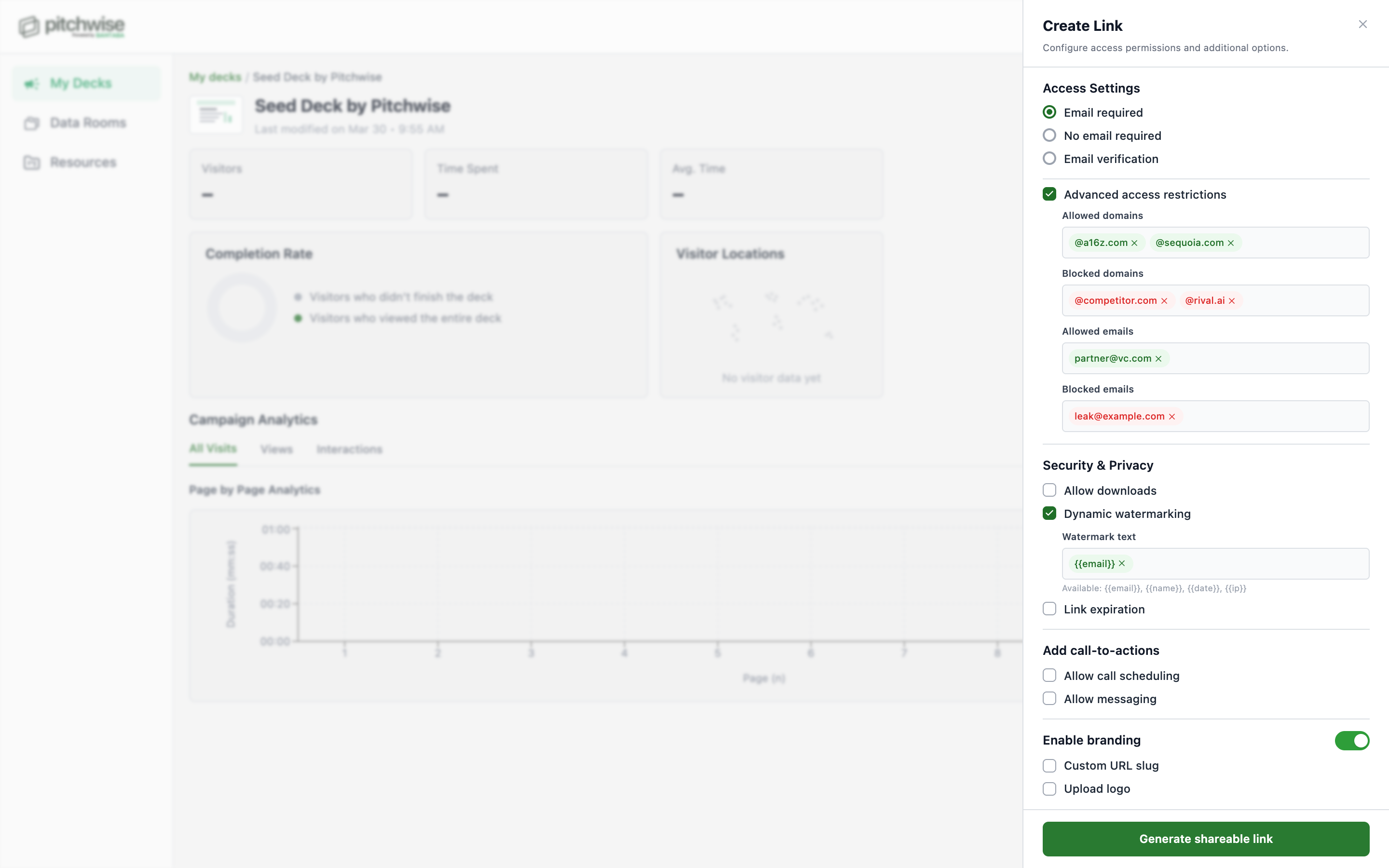
3. Configure your settings
Set your access controls, CTAs, security options, and branding before sharing. See the full breakdown in the Link Permissions article.
Set your access controls, CTAs, security options, and branding before sharing your Pitchwise link
4. Click 'Copy link'.
Click the green Copy link button at the bottom of the panel. Your secure Pitchwise link is ready to share – paste it into an email, a LinkedIn message, a CRM, or anywhere else.
Tip: You can also click 'Copy link' directly from the deck header without opening the settings panel. This copies the link with your existing settings applied.
About your deck link
Each document has one link. The link stays the same even if you update the document — existing recipients automatically see the latest version when they open it. Your analytics history is preserved across updates.
For data rooms, the link is found by clicking the Share button inside the room, which opens a modal with the shareable link and your current access settings.
Lorem ipsum dolor sit amet, consectetur adipiscing elit. Suspendisse varius enim in eros elementum tristique. Duis cursus, mi quis viverra ornare, eros dolor interdum nulla, ut commodo diam libero vitae erat. Aenean faucibus nibh et justo cursus id rutrum lorem imperdiet. Nunc ut sem vitae risus tristique posuere.
From the sidebar, click Data Rooms. Click View on the room you want to share. You will see the room folder and file list with three buttons in the top right: Analytics, Settings, and Share.
2. Check your access settings
Before sharing, confirm your access setting is configured correctly. Click 'Settings' and then the 'Permissions' tab to see the current option — 'Email required', 'Email verification', or 'Allow specific emails'. Update it if needed and click Save Changes.
Tip: The Share modal shows your current access setting beneath the link with a Change link. If it shows 'Email required' and you need stricter control, click 'Change' or go to Settings > Permissions > Allow specific emails before distributing the link.
Before sharing your Pitchwise Data Room, confirm your access setting is configured correctly
3. Click Share
Click the green Share button in the top right of the data room. A modal appears titled Share, followed by the room name in quotes — for example, Share Pitchwise Investor Room.
4. Copy your link
The modal shows your Shareable link URL and a Copy link button. Click Copy link. Your data room link is now on your clipboard, and you can paste it wherever you need to share it. Recipients click and enter with no Pitchwise account required.
Beneath the link, the modal shows your current access setting. For example, Access setting: Email required, with a Change link. Clicking Change takes you directly to Settings > Permissions so you can update it without closing and navigating manually.
Key differences between deck links and data room links
Deck links
Configured via the Manage Link Settings panel — open it with the chain link icon next to Copy link. One link per document. Settings include access controls, CTAs, downloads, investor network, and custom branding.
Data room links
Access is configured in Settings > Permissions inside the room. Download settings in Settings > Security. Share button opens a modal to copy the single room link. One link per room.
Lorem ipsum dolor sit amet, consectetur adipiscing elit. Suspendisse varius enim in eros elementum tristique. Duis cursus, mi quis viverra ornare, eros dolor interdum nulla, ut commodo diam libero vitae erat. Aenean faucibus nibh et justo cursus id rutrum lorem imperdiet. Nunc ut sem vitae risus tristique posuere.
Lorem ipsum dolor sit amet, consectetur adipiscing elit. Suspendisse varius enim in eros elementum tristique. Duis cursus, mi quis viverra ornare, eros dolor interdum nulla, ut commodo diam libero vitae erat. Aenean faucibus nibh et justo cursus id rutrum lorem imperdiet. Nunc ut sem vitae risus tristique posuere.