
🚀 Join the Waitlist Now! 🚀
Thank you for your interest. We’re currently testing the product with a closed group of users to ensure that the product exceeds your expectations.
Here's why you should be excited about joining our waitlist:

Elevate Your Fundraising Game: Get access to intelligent features designed to enhance every step of your fundraising process.

Exclusive Early Access: Gain an unfair advantage by being the first to supercharge your fundraising with Pitchwise.

Special Insider Perks: Enjoy all our exclusive offers, discounts and other special perks as an early adopter.

🙌 Be the First in Line!
Pitch Wise Logo
Thank you for joining the Pitchwise waitlist! 🚀
Expect a confirmation email with all the details.

Keep an eye on your inbox for exclusive updates, early access opportunities, and insights that will shape the way you approach fundraising.

We can't wait to embark on this journey  with you!
Explore our Blog
Something went wrong, please try again
January 1, 2026

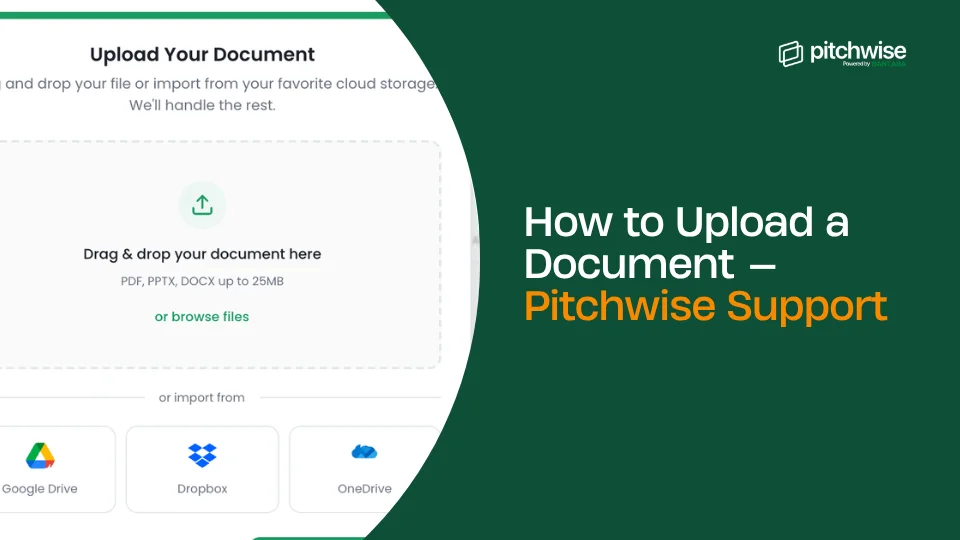
How to Upload a Document — Pitchwise Support

by
Pitchwise Team

Upload any PDF or presentation to Pitchwise and get a secure, trackable link in under two minutes.

Before you start

Make sure your file is in a supported format: PDF, or PowerPoint (.pptx or .ppt). PDF is recommended for the best rendering across all devices.

Step-by-step

1.  Log in to your Pitchwise account

Go to app.pitchwise.se and sign in. You'll land on the My Decks section.

2.  Click 'Upload a deck'.

From My Decks, click the Upload a deck button. A file picker will open. Select your PDF, PowerPoint, or Keynote file. Pitchwise processes it for you immediately.

Tip: You can also click 'Create a teaser' to build a custom landing page with CTAs instead of uploading a file. This is useful for sharing a short pitch summary before sending the full document.
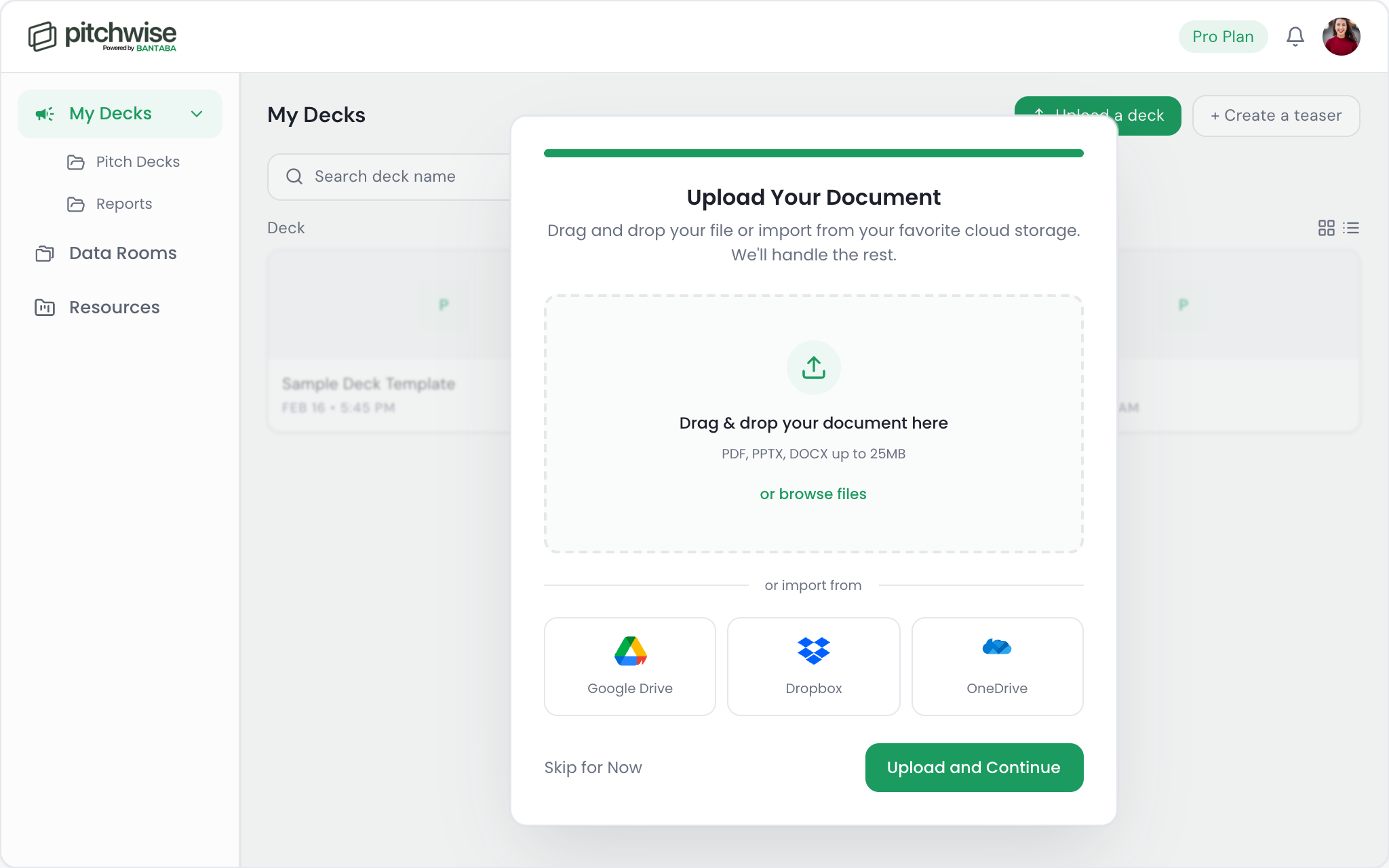
You can drag and drop your file or import from your favourite cloud storage.

3.  Name your deck

Give your document a name to identify it in your dashboard — for example, 'Seed Deck v4' or 'Q1 Proposal — Acme Corp.' This name is only visible to you, not to your recipients.

4.  Configure your link settings

Click the chain link icon next to Copy link to open the Manage Link Settings panel. Configure how your link behaves before sharing. See the Link Permissions article for a full explanation of each setting.

5.  Click 'Copy link'.

Once your settings are configured, click Copy link at the bottom of the panel. Your secure Pitchwise link is ready to paste into an email, LinkedIn message, CRM, or wherever you normally share documents.

What happens after you share

The moment a recipient opens your link, Pitchwise begins tracking their engagement. You'll see time spent per page, completion rate, and visitor data in your document’s analytics view. With Pitchwise, you also get real-time alerts, and you'll be notified the moment they open it.

Supported file types

  • PDF (recommended)
  • PowerPoint (.pptx, .ppt)

Related articles

->  How to manage link settings

->  How to create a data room

->  Understanding slide-level analytics

Find this article helpful? Share it with a friend:

You may also like

Learn More
View All
Right Arrow